This article explains how to configure a Gremsy payload to receive direct SBUS commands from a remote controller. SBUS Raw Input can be used for basic camera functions such as capture/trigger, zoom, video source switching, tracking trigger, and gimbal movement.
The examples below use the Gremsy VIO payload, but the same configuration flow can be applied to other Gremsy payloads that support SBUS input.
Use this mode when you want the remote controller to control the payload directly, without converting the command through the autopilot.
Step 1: Prepare the connection
Before opening the web settings, connect the payload to your computer through one of the available Ethernet interfaces. For VIO, there are two available options:
Option 1 - Main Ethernet connection
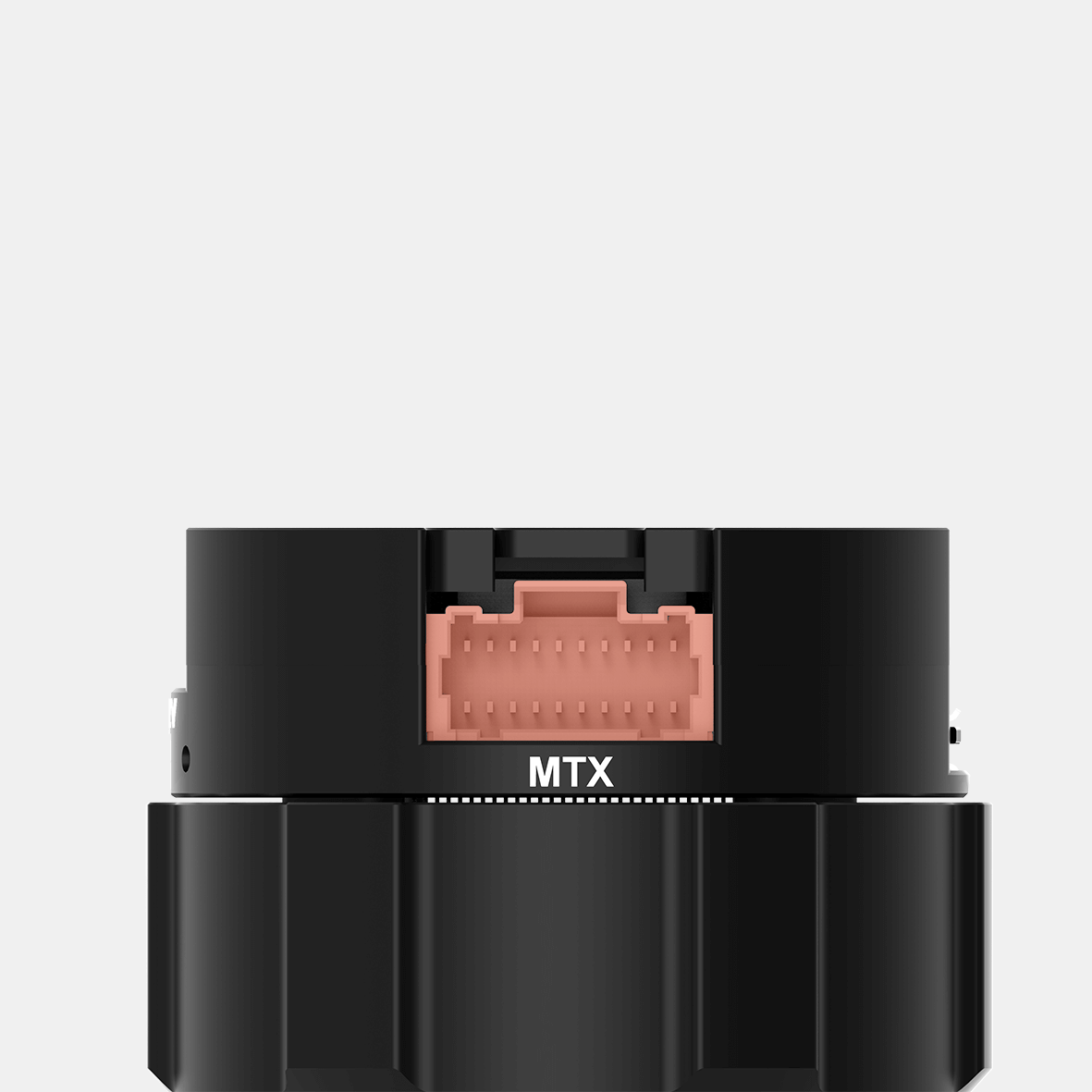
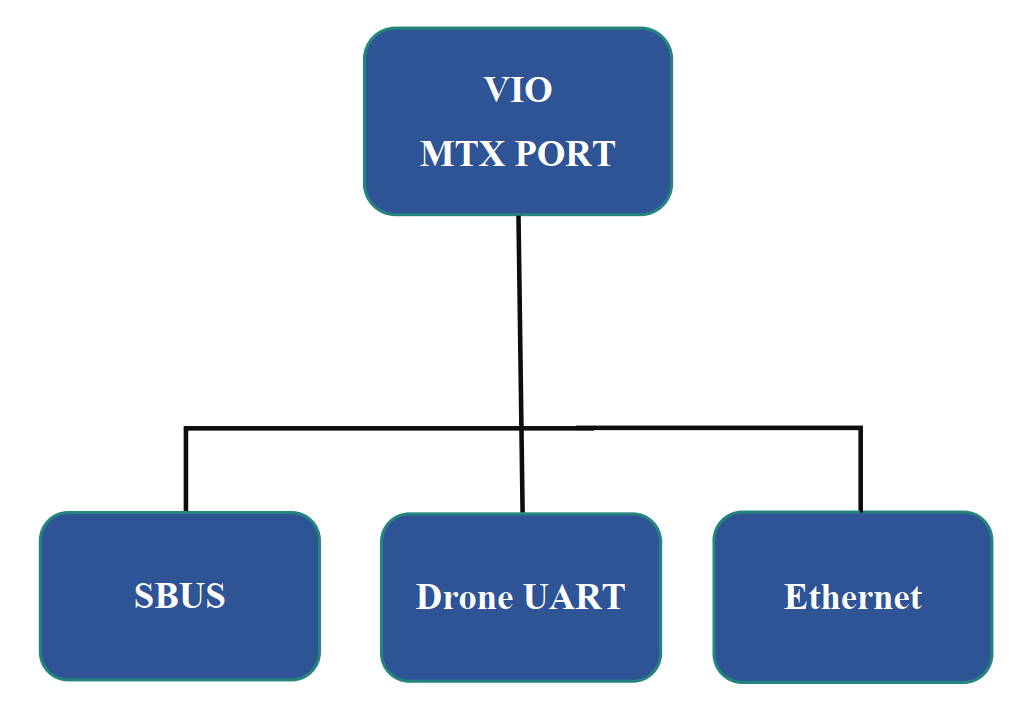
This connection is routed through the MTX port via the VIO control cable and is provided as an RJ45 connector in the standard connection setup. Refer to: https://docs.gremsy.com/payloads/vio/hardware-configuration/i-o-connection
Default IP address: 192.168.144.240
Option 2 - USB-Ethernet connection
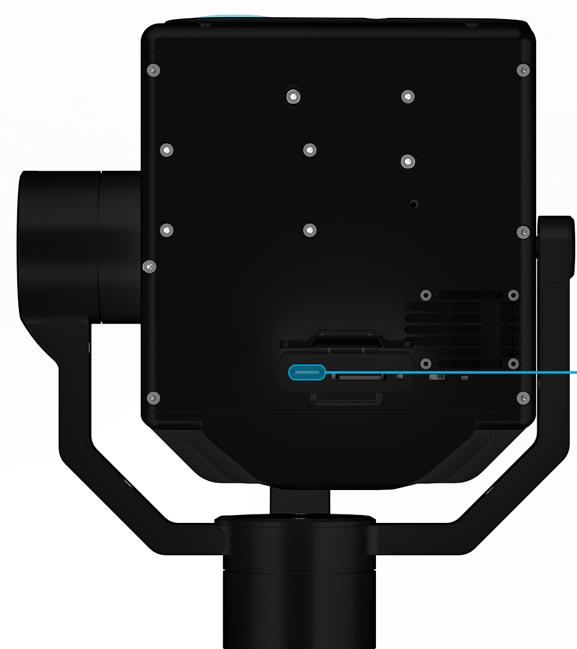
This interface is available from the USB-C port at the bottom of the camera/payload.
Fixed IP address: 192.168.55.1
Notes
If the Main Ethernet IP address has been changed and you no longer know it, connect through USB-Ethernet to access the web settings and reconfigure the payload.
After connecting the payload to the computer, set the computer Ethernet/USB-Ethernet adapter to a static IP address in the same subnet as the payload. Refer to: https://docs.gremsy.com/payloads/vio/hardware-configuration/computers-ip-configuration
Step 2: Access the Payload web settings
The following steps use the USB-Ethernet interface as the example connection.
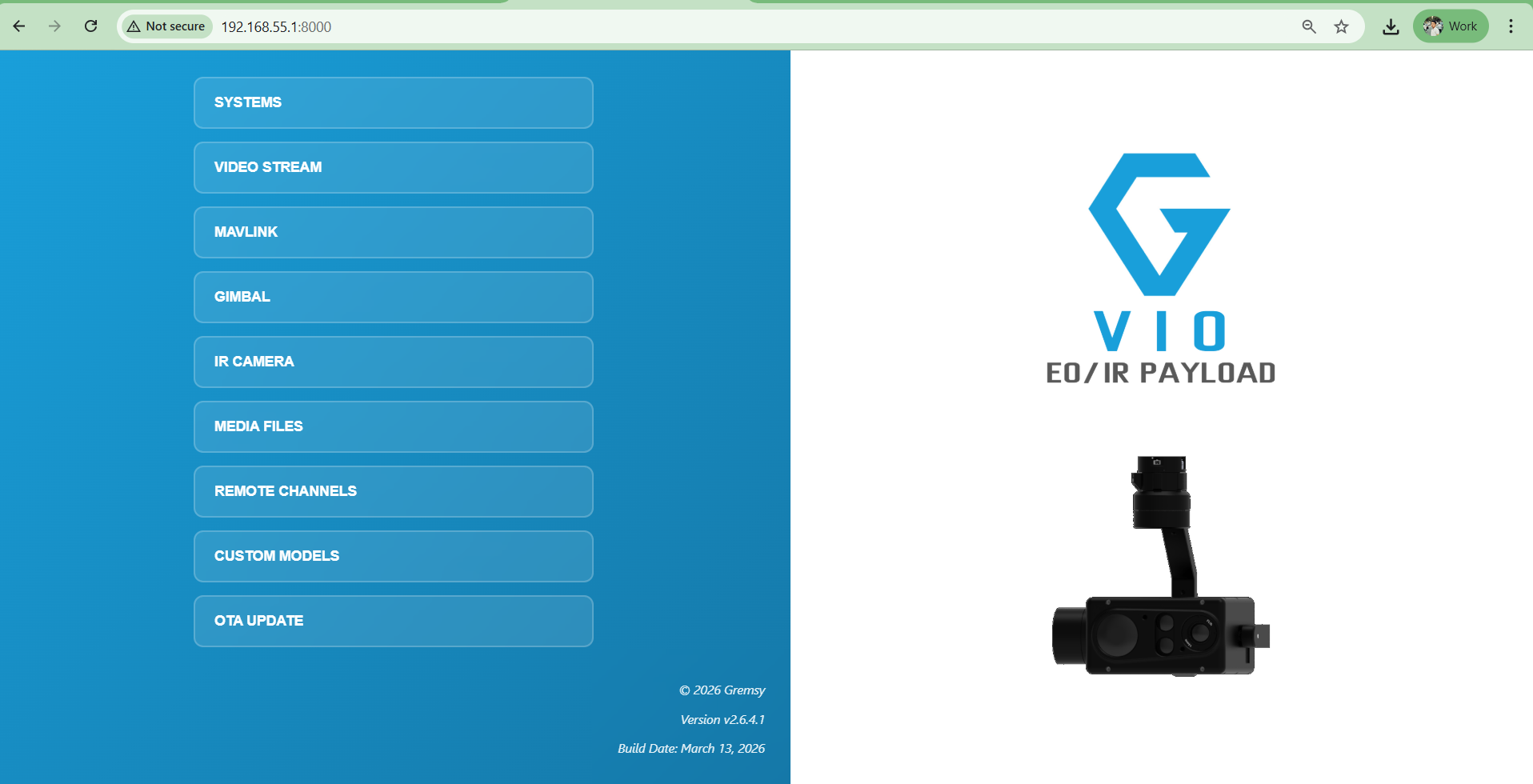
Open a web browser and go to: http://192.168.55.1:8000/
The Payload web UI will appear as shown below.
Step 3: Configure Remote Channel settings
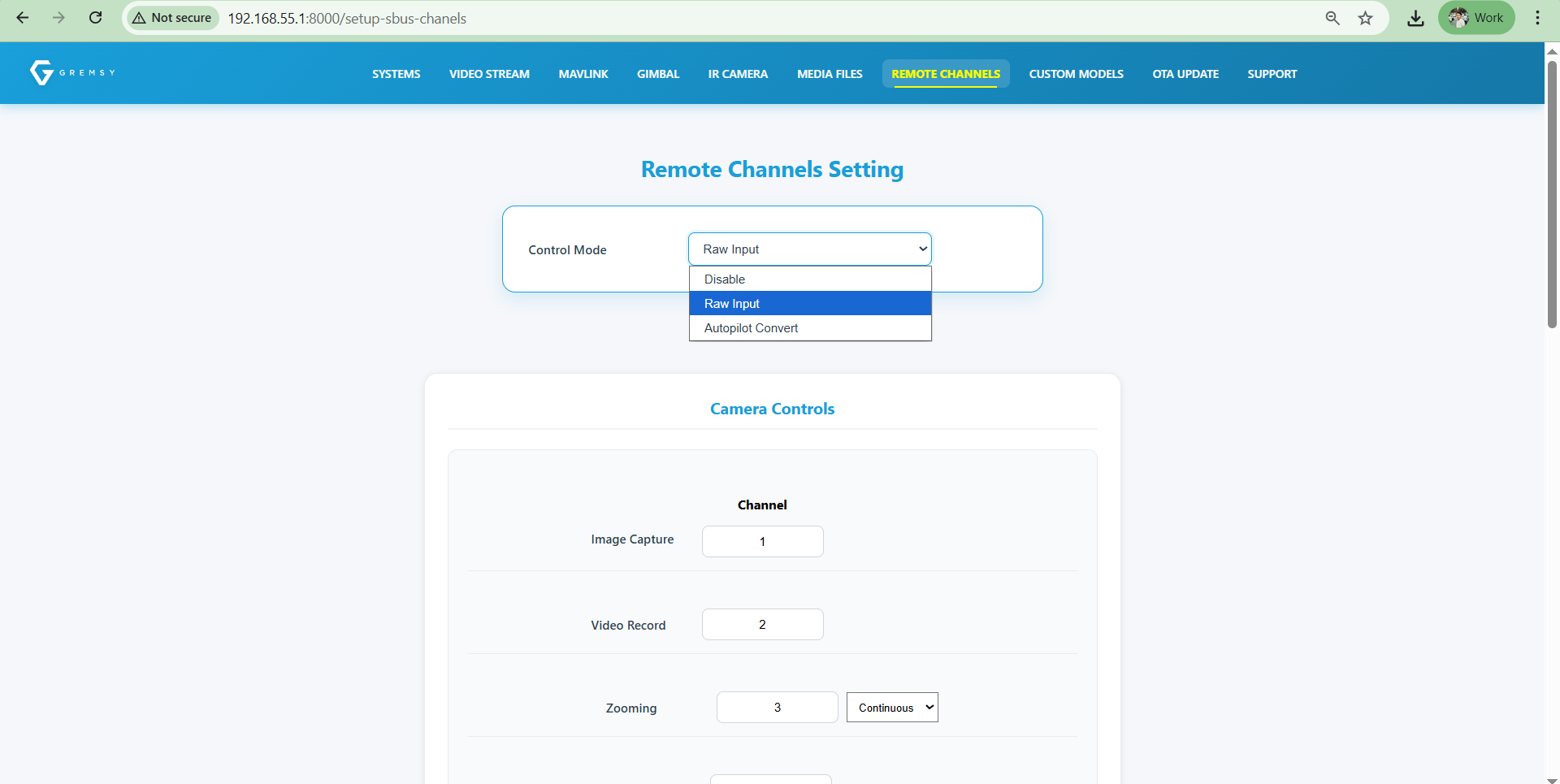
On the Web Settings - Navigate to the Remote Channel page.
In Control Mode, select one of the following modes:
Disable: SBUS input is ignored. The payload can only be controlled via MAVLink.
Raw Input: The payload is controlled directly by the raw SBUS channels from the remote controller.
Autopilot Convert: The payload is controlled by SBUS data converted by the autopilot through MAVLink.
For this article, select Raw Input.
In the Control Mode field, choose Raw Input as shown below.
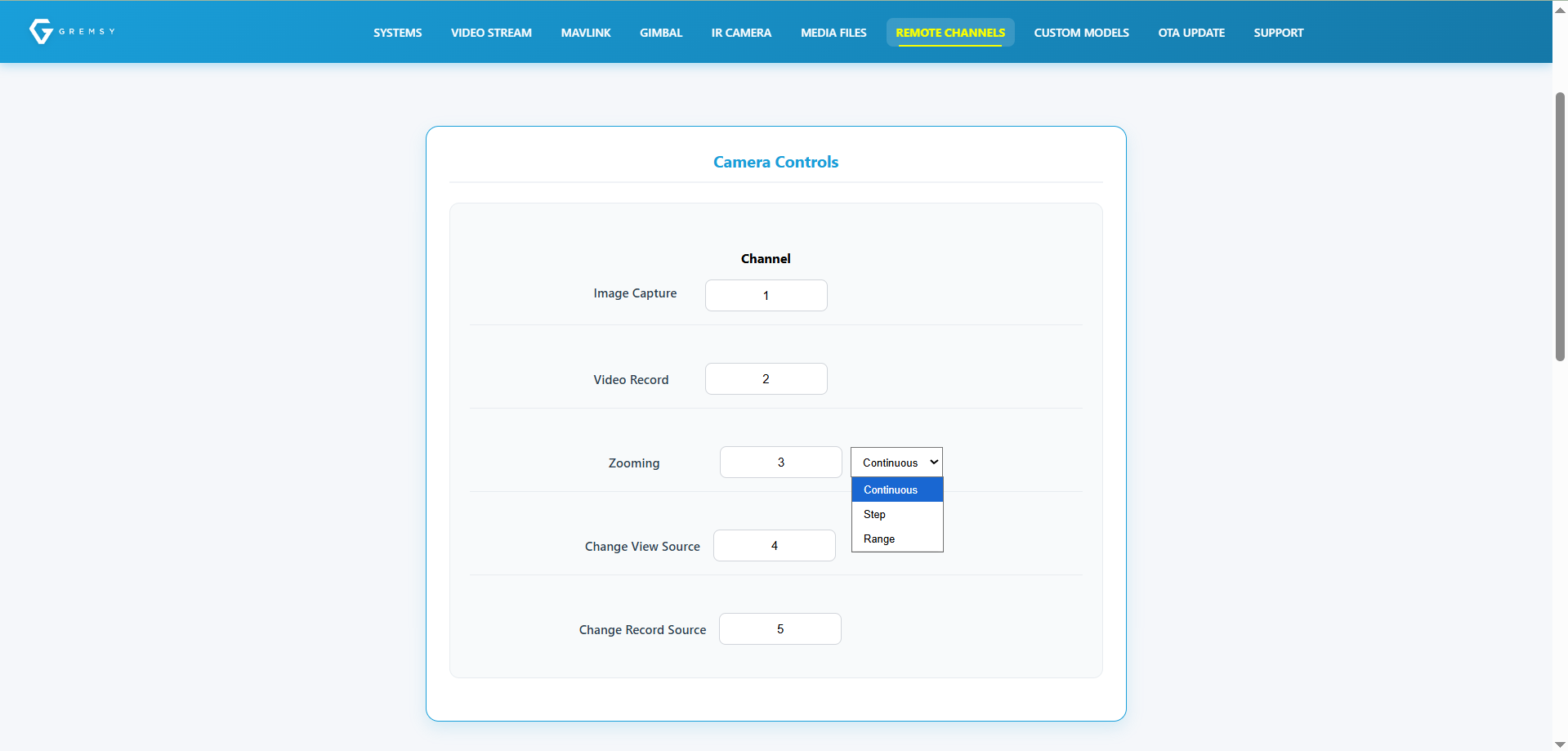
Assign channels for camera functions
Configure the desired SBUS channels for camera control. Zoom supports three control types: Continuous, Step, and Range. Select the option that matches your control preference.
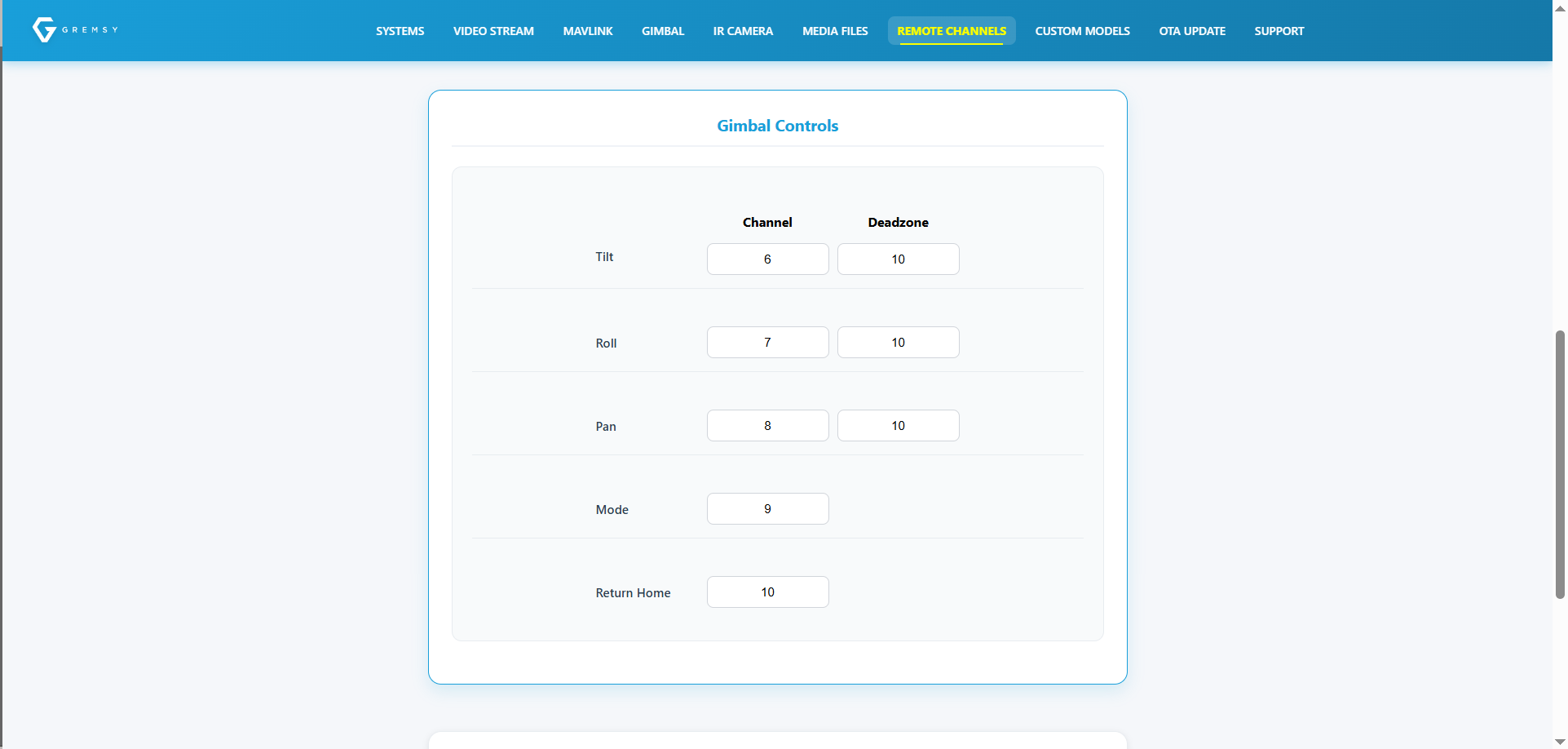
Assign channels for gimbal control
Configure the SBUS channels for each gimbal axis. Each axis supports a Deadzone setting to trim small control input variations. Maximum deadzone value: 100.
Assign the channel for tracking trigger
The object tracking will be able to trigger when assign this channel and trigger the button.
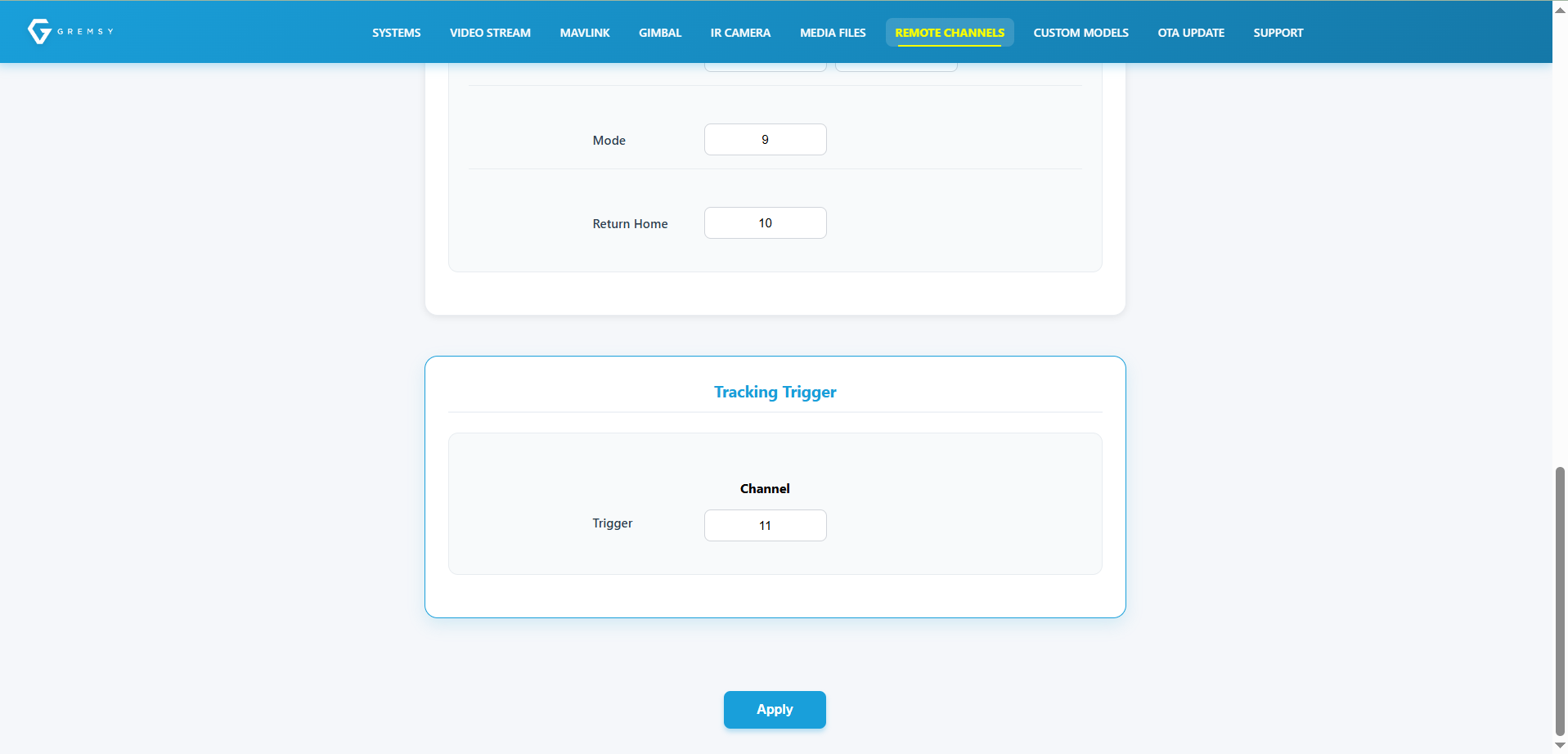
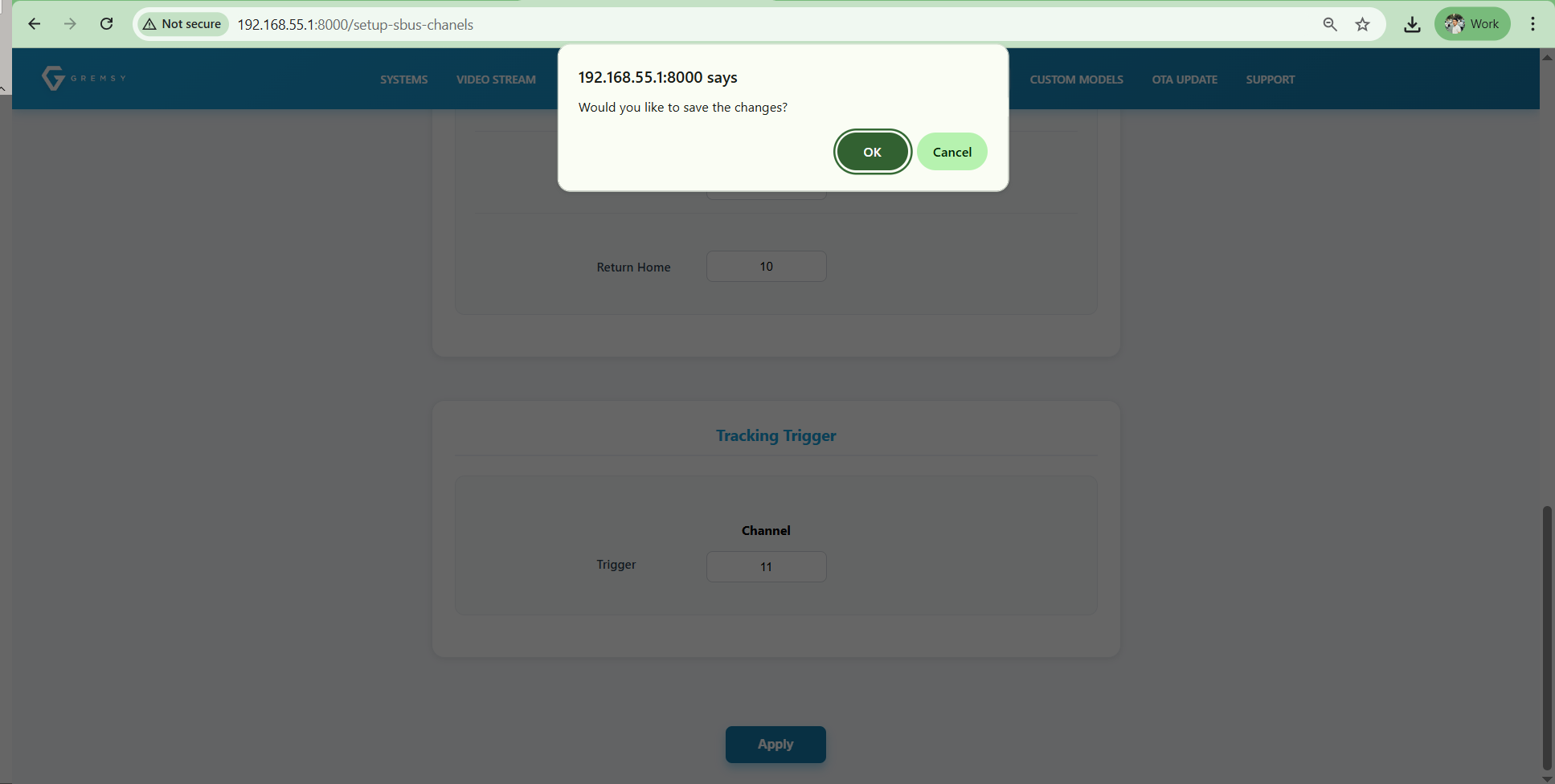
After all channels are assigned, click Apply at the bottom of the page. When the confirmation pop-up appears, click OK.
Confirm that the updated values are saved correctly.
Finally, test the SBUS remote controller to confirm that the assigned channels trigger the expected payload and gimbal functions.
Was this article helpful?
That’s Great!
Thank you for your feedback
Sorry! We couldn't be helpful
Thank you for your feedback
Feedback sent
We appreciate your effort and will try to fix the article